As a long-time Shopify seller, I thought I had my SEO basics covered. I optimize my product titles, write unique descriptions, and work hard on my collections. So, imagine my shock when I recently discovered that all four of my Shopify stores were missing the single most important on-page SEO element on their homepages: the H1 tag.
I spent two frustrating hours digging through the Shopify Community forums, trying various "quick fixes" that never quite worked. That's why I'm writing this guide. After a lot of trial and error, I developed a foolproof, two-step method that solved the problem cleanly on all my stores, which use popular free themes like Ride, Taste, and Shapes.
This guide will walk you through my exact process. We'll uncover why this problem exists, why you shouldn't just copy what other sites are doing, and finally, implement a perfect, professional-grade solution.
A quick note: This guide focuses specifically on the homepage. Most Shopify themes correctly assign H1 tags to your product titles, blog post titles, and collection titles. The homepage is the one that's almost always forgotten.
Step 1: The Diagnosis – Where Did My H1 Tag Go?
The first thing I learned is that on most Shopify themes, the problem isn't that you have no H1 tag. The problem is that your H1 tag is being wasted on your store's logo.
This is bad for SEO. Your homepage H1 should be a descriptive sentence with your main keywords, telling Google what your entire store is about. Your logo can't do that. Here's how you can check your own site in under a minute.
The One-Minute Diagnosis:
- Go to your store's homepage.
- Right-click directly on your store's logo in the header.
- Select "Inspect" from the dropdown menu.
- Your browser's developer tools will open, with a line of code highlighted. Look at that line and the one directly above it. Do you see it wrapped in
<h1> tags?
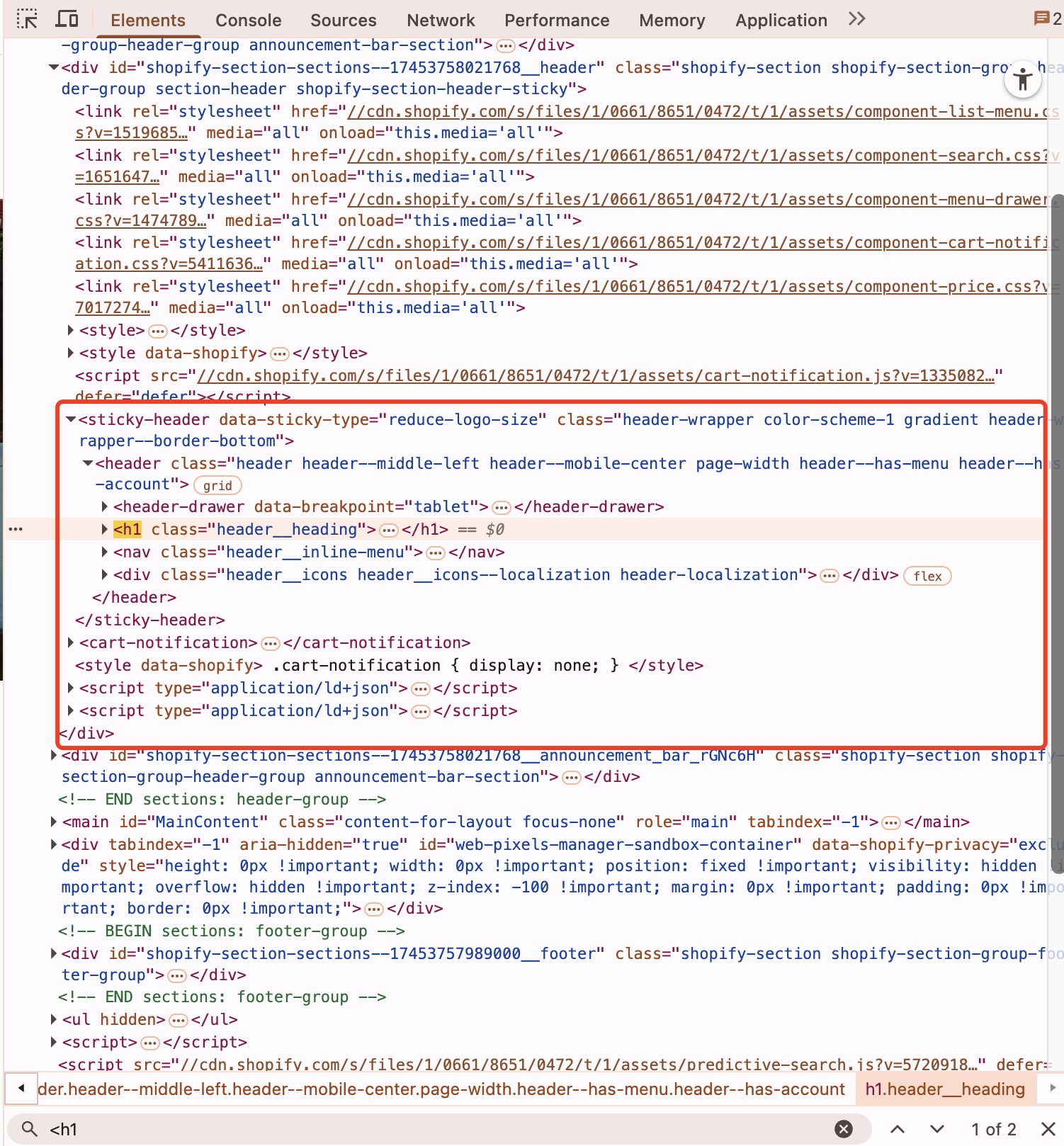 H1 Tag Diagnosis in Developer Tools
If you see your logo wrapped in an <h1>, you have the same problem I did. Our mission is to first "free" this H1 tag from the logo, then put it to proper use.
Of course, you can also install a browser extension to check whether your H1 tag is present and functioning properly. Like this:
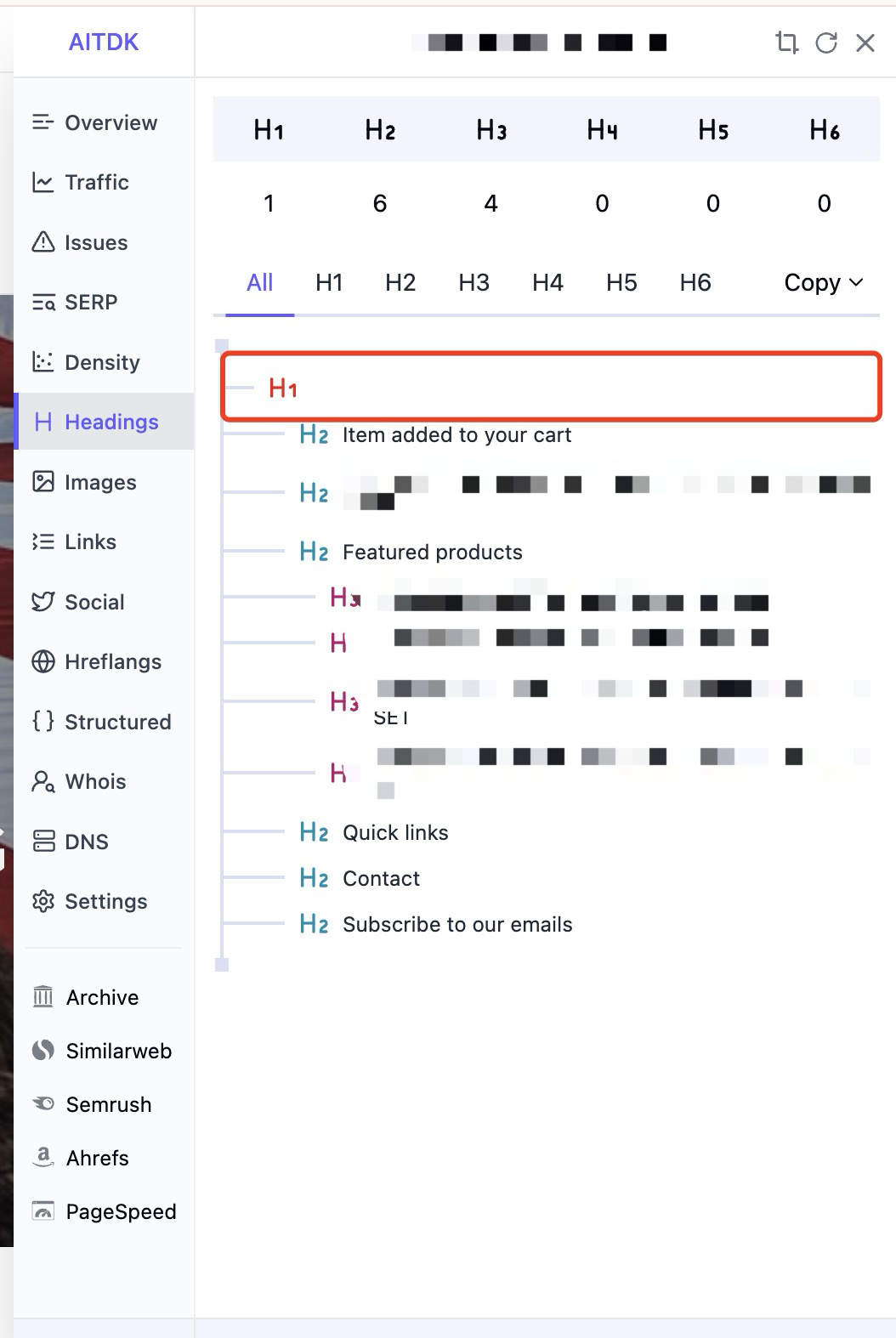 SEO Extension Check
A Quick Detour: Why You Shouldn't Just Copy Other Sites
During my research, I found other websites that seemed to have this figured out. But when I inspected their code, I realized they were making the exact same mistake: their H1 was still on their logo! Ps: This is actually a well-known DTC brand. I discovered them through official recommendations from Google and Shopify plus, and I've been studying their marketing ever since. You can see their logo is used as the H1 tag, which is lazy and totally wrong.
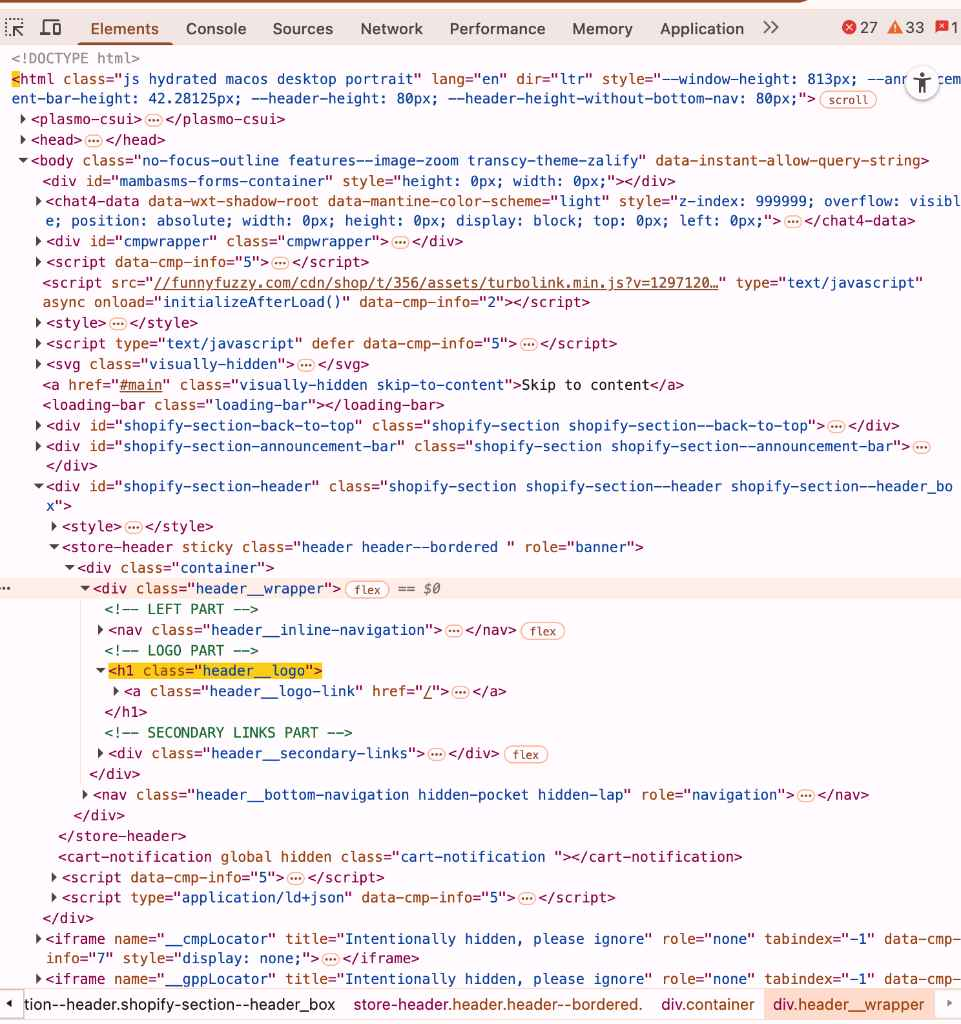 Brand Logo H1 Example
Using the logo as the H1 provides very little informational value to search engines and AI crawlers like Google, ChatGPT, or Perplexity. The H1 acts as your website's tagline—it should be a clear, concise sentence that immediately tells crawlers what your site is about. Unless you're Nike, Coca-Cola, or Disney—brands that need no introduction—this is a missed opportunity.
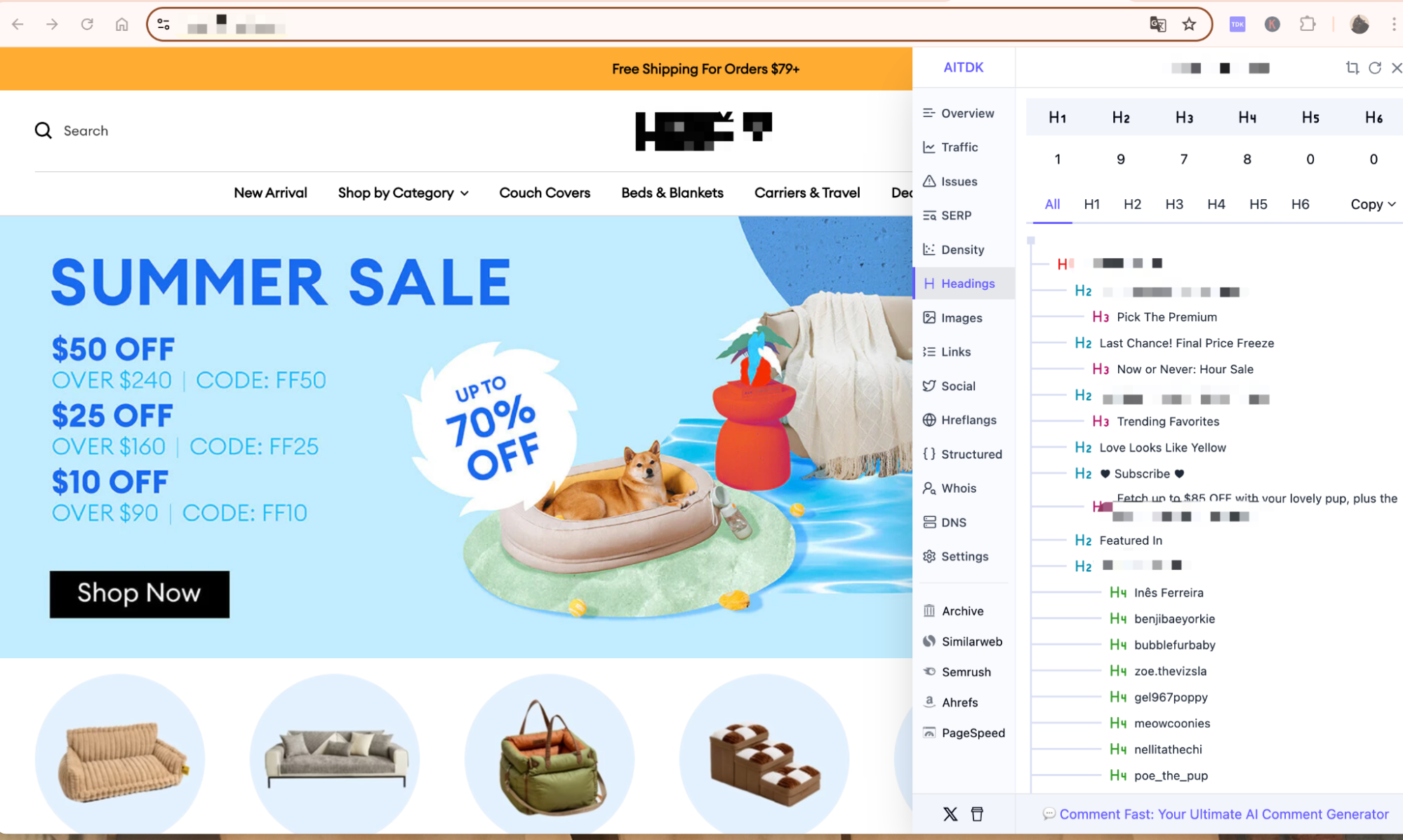 H1 Tag Best Practices
As a result, many of their product and collection pages ended up reusing the homepage H1, which can seriously mislead Google and AI crawlers like ChatGPT. This directly affects how the quality of the site is evaluated. This has a significant negative impact on their website's AI visibility. See following screenshot: they don't have H1 tag on a very important collection page!
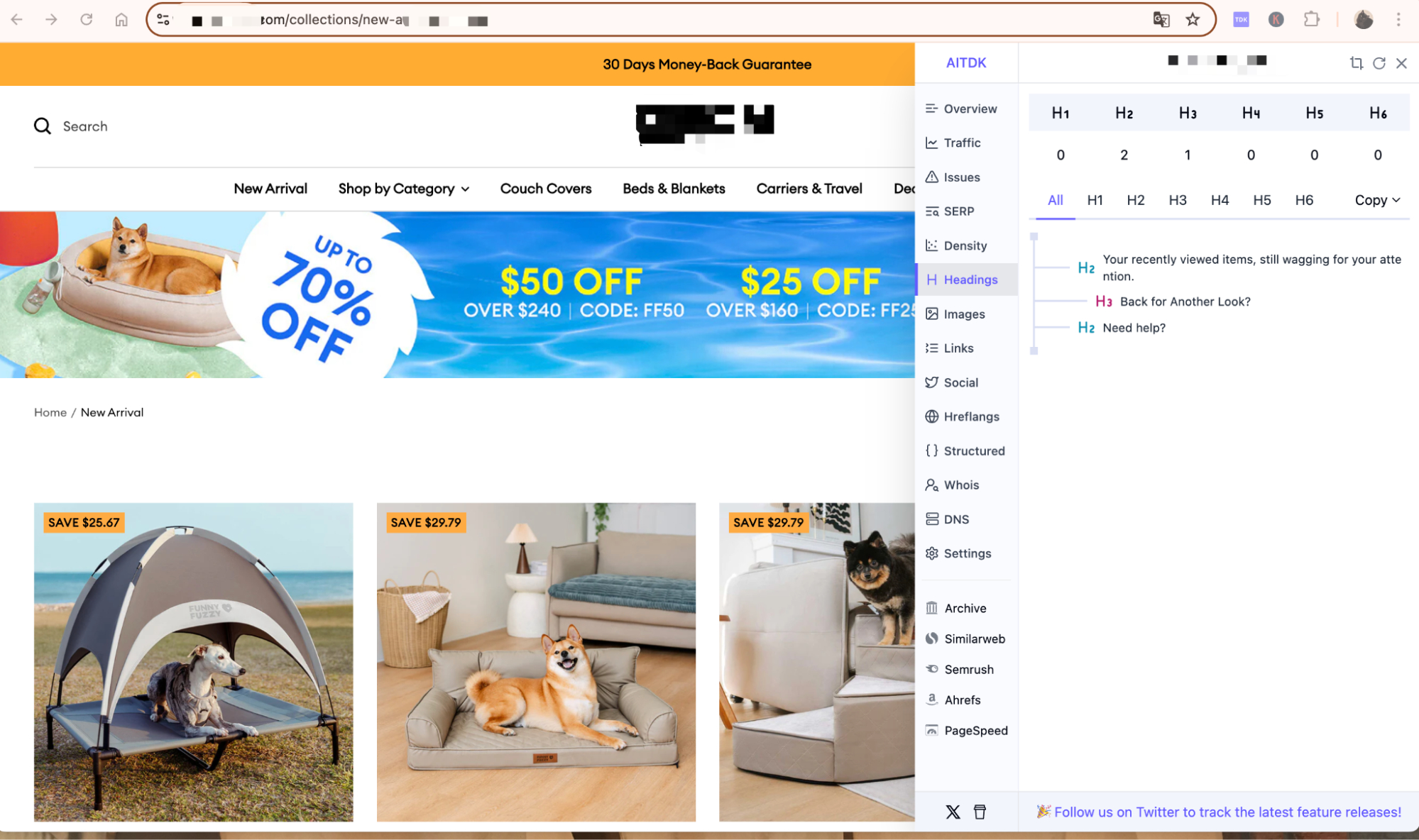 Missing H1 Collection Page
This is a critically important lesson: don't just copy another site's code without understanding the SEO principle behind it. Using the H1 tag for your logo is an outdated practice because:
- It's not keyword-rich. It only contains your brand name, not what you sell.
- It's not page-specific. The logo H1 appears on every single page, telling Google that your "About Us" page and a specific product page have the same title. This is a major SEO mistake.
We need a better, more professional solution.
The Ultimate Fix: A Perfect Balance of SEO & Design
Our goal is simple:
- Remove the
<h1> from the logo.
- Add a new, keyword-rich
<h1> to the homepage that is invisible to users but perfectly visible to Google, ChatGPT and other AI crawlers.
The Philosophy: We will use a special CSS class to visually hide our new H1 tag. It's important not to use display: none;, as Google may ignore that. Instead, we use a modern, accessibility-friendly technique that is perfectly safe for SEO.
The Two-Step Master Plan
Step 1: The Prerequisite - Fixing header.liquid
First, we need to tell the theme to stop using <h1> for the logo.
- In your Shopify Admin, go to Online Store > Themes. On your current theme, click ... and then Edit code.
- Open the Sections folder and click on the header.liquid file.
- Search the file (Ctrl+F or Cmd+F) for
<h1. You are looking for the code that wraps your logo.
- Your job is to change the opening
<h1> tag to <div> and the closing </h1> tag to </div>. You may need to do this in one or two places within the file.
BEFORE
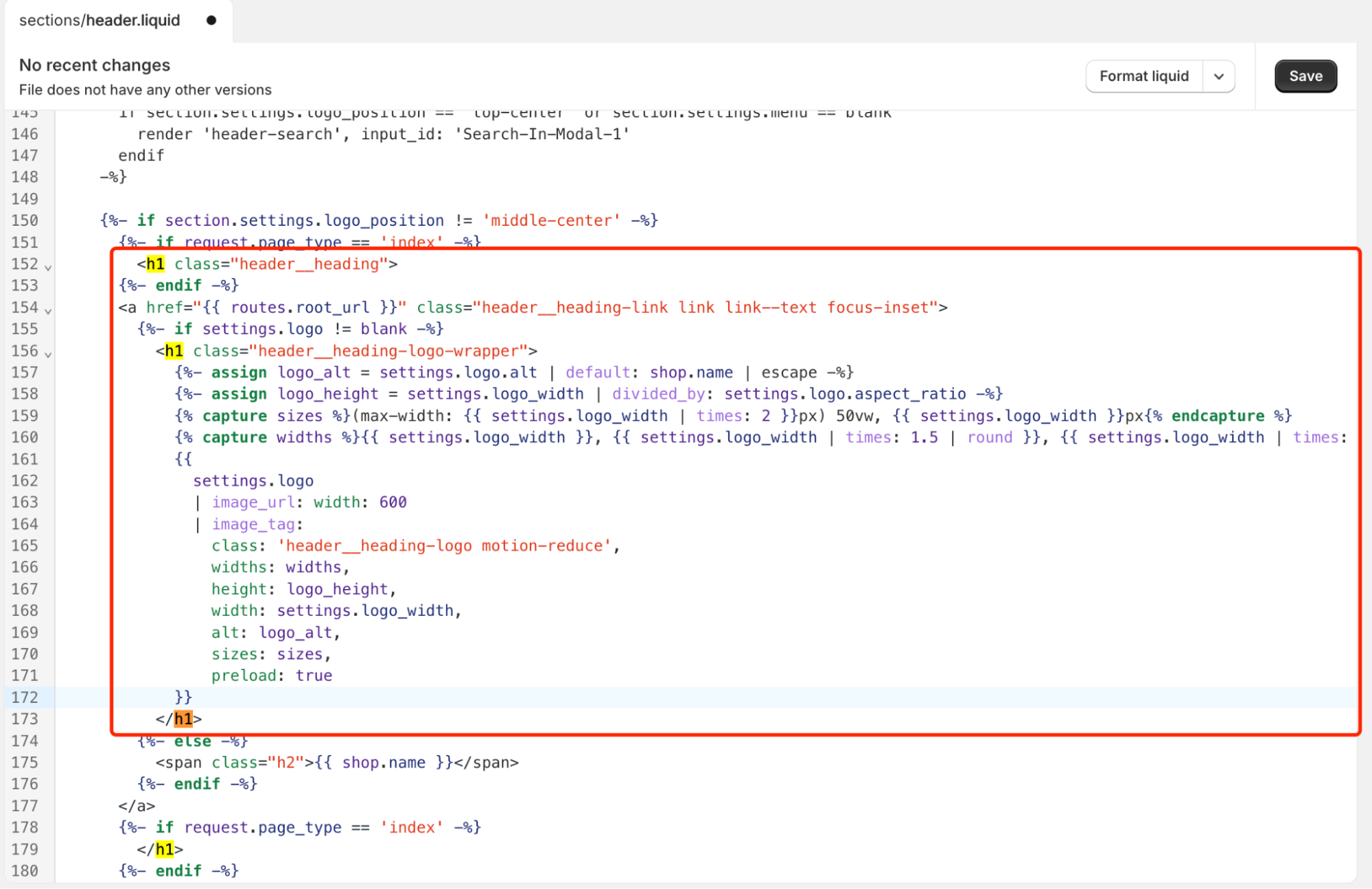 Header Before Fix
AFTER: h1 to div
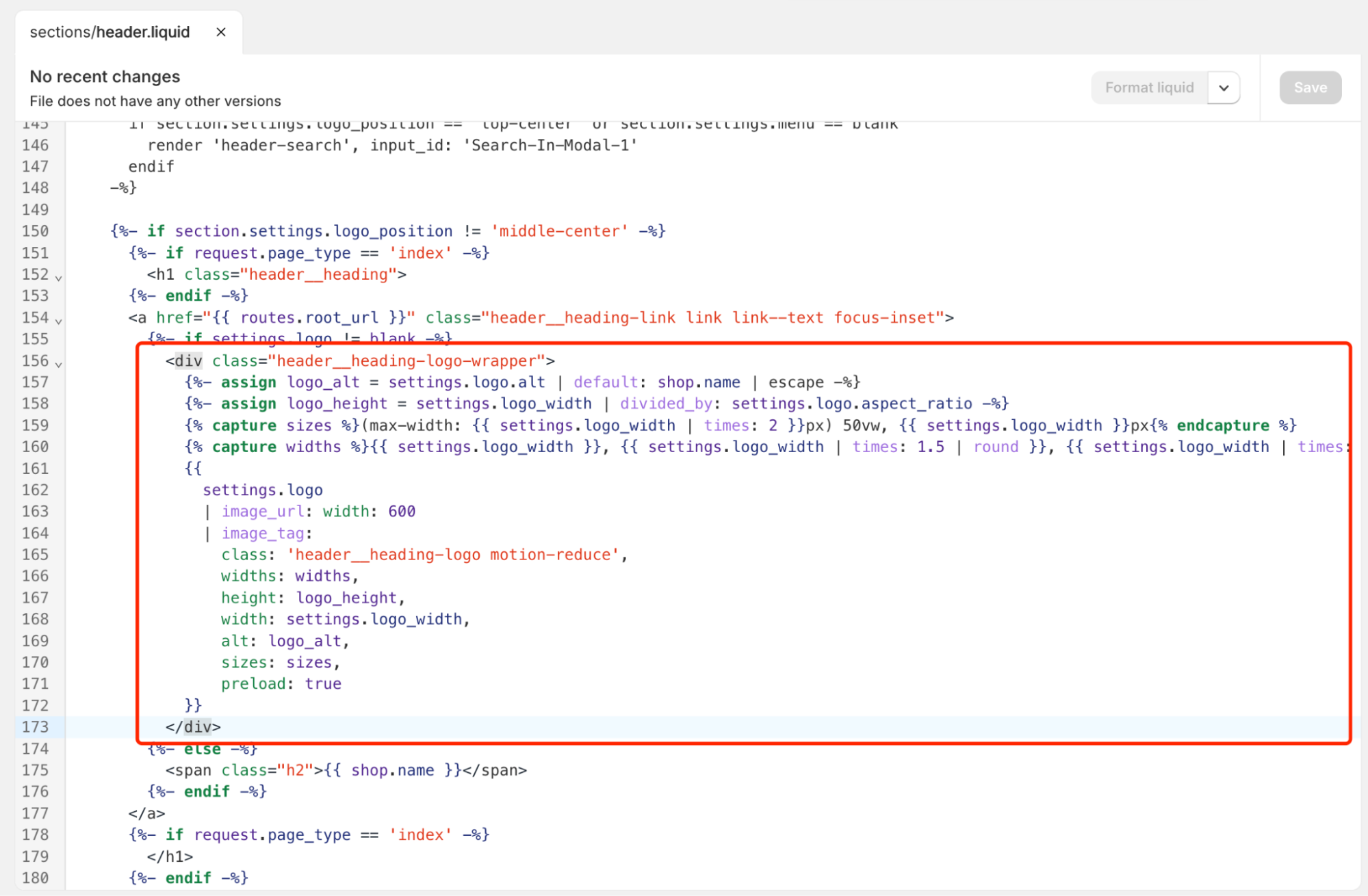 Header After Fix
A special note: On my Taste, Ride, and Shapes themes, this <h1> tag was often inside an {% if template.name == 'index' %} statement. This is fine. The fix is the same: change the h1 to div wherever you find it wrapping the logo.
- Click Save. The H1 tag is now free.
Step 2: The Implementation - Modifying theme.liquid
This is where we add our new, powerful H1. This step involves editing the most important file in your theme, so please be careful.
- First, make a backup! Go to the Themes page, click ... on your theme, and select Duplicate. This creates a safe copy you can restore if anything goes wrong.
- In the code editor, open the Layout folder and click on theme.liquid.
- Find the opening
<body> tag near the top of the file. It might look like <body class="gradient"> or something similar.
- Paste the following code on a new line directly below the opening
<body> tag.
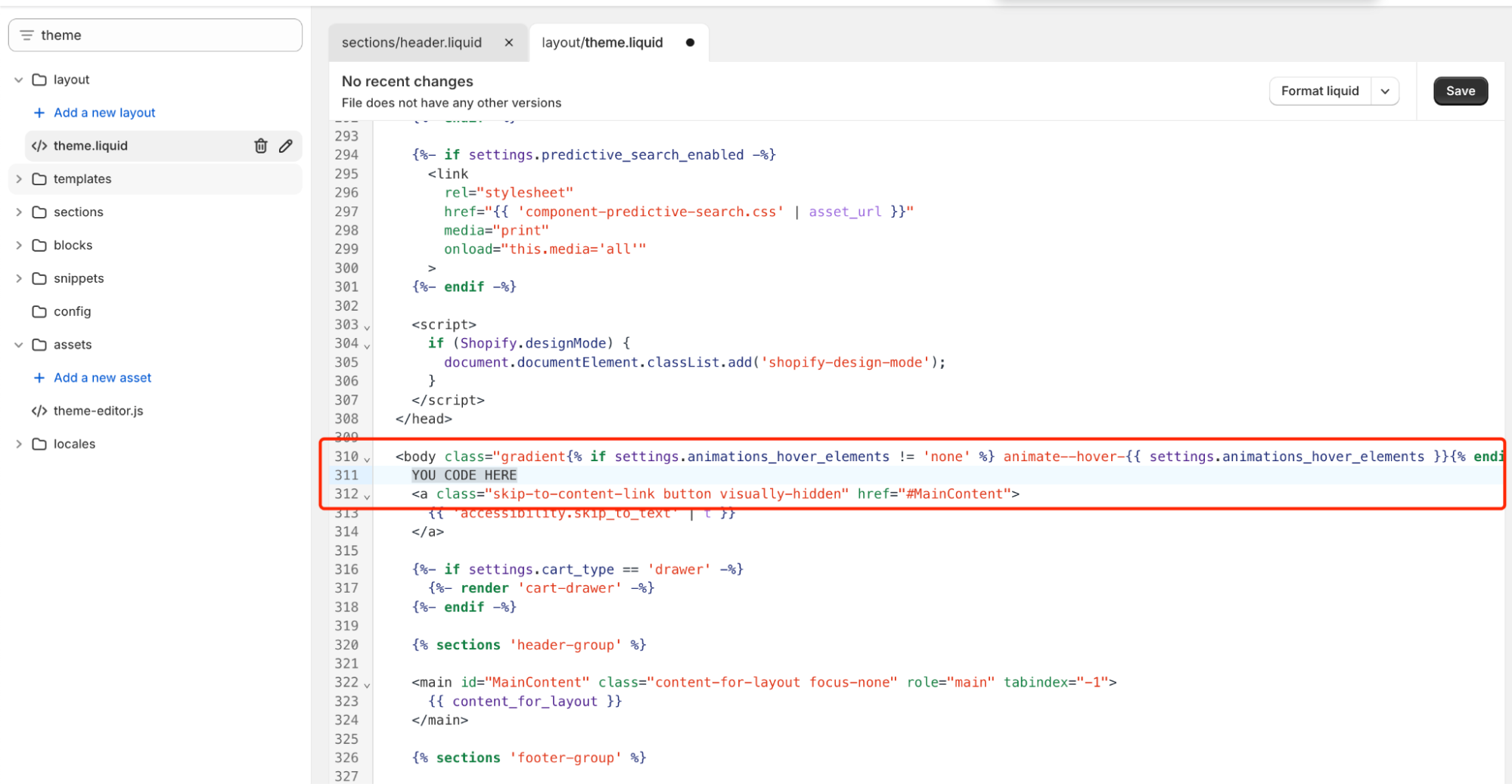 Theme Liquid Implementation
The Code to Paste:
{%- if template.name == 'index' or template == 'index' -%}
  <style>
    .visually-hidden {
      position: absolute;
      width: 1px;
      height: 1px;
      margin: -1px;
      padding: 0;
      overflow: hidden;
      clip: rect(0, 0, 0, 0);
      border: 0;
      white-space: nowrap;
    }
  </style>
  <h1 class="visually-hidden">Your Awesome Homepage Title - Main Keywords Here</h1>
{%- endif -%}
- Most Important Part: Change the text "Your Awesome Homepage Title - Main Keywords Here" to your actual, desired H1. For example: "Handcrafted Leather Bags & Minimalist Wallets – Your Brand Name".
- Click Save.
Your Action Plan and Final Thoughts
From the initial shock of discovery to a final, perfect solution, this journey taught me a valuable lesson. Optimizing your store is about understanding the principles, not just applying quick fixes.
Here is your final checklist:
- Diagnose First: Always check your own site's logo with the "Inspect" tool to see if it's wrapped in an
<h1>.
- The Logo is Not an H1: Your logo belongs in a
<div>, not a heading tag. Fix this in header.liquid.
- Use the Visually Hidden Method: This is the professional standard for adding an H1 without affecting your design.
- Master the Workflow: The "Fix header.liquid -> Implement in theme.liquid" process is the most reliable way to solve this for good.
I hope this detailed guide saves you the two hours of frustration it cost me. Getting your homepage H1 tag right is a huge step forward in your SEO journey.
Good luck, and feel free to share your success in the comments!